Common Problems When Printing Your Own Wall Art
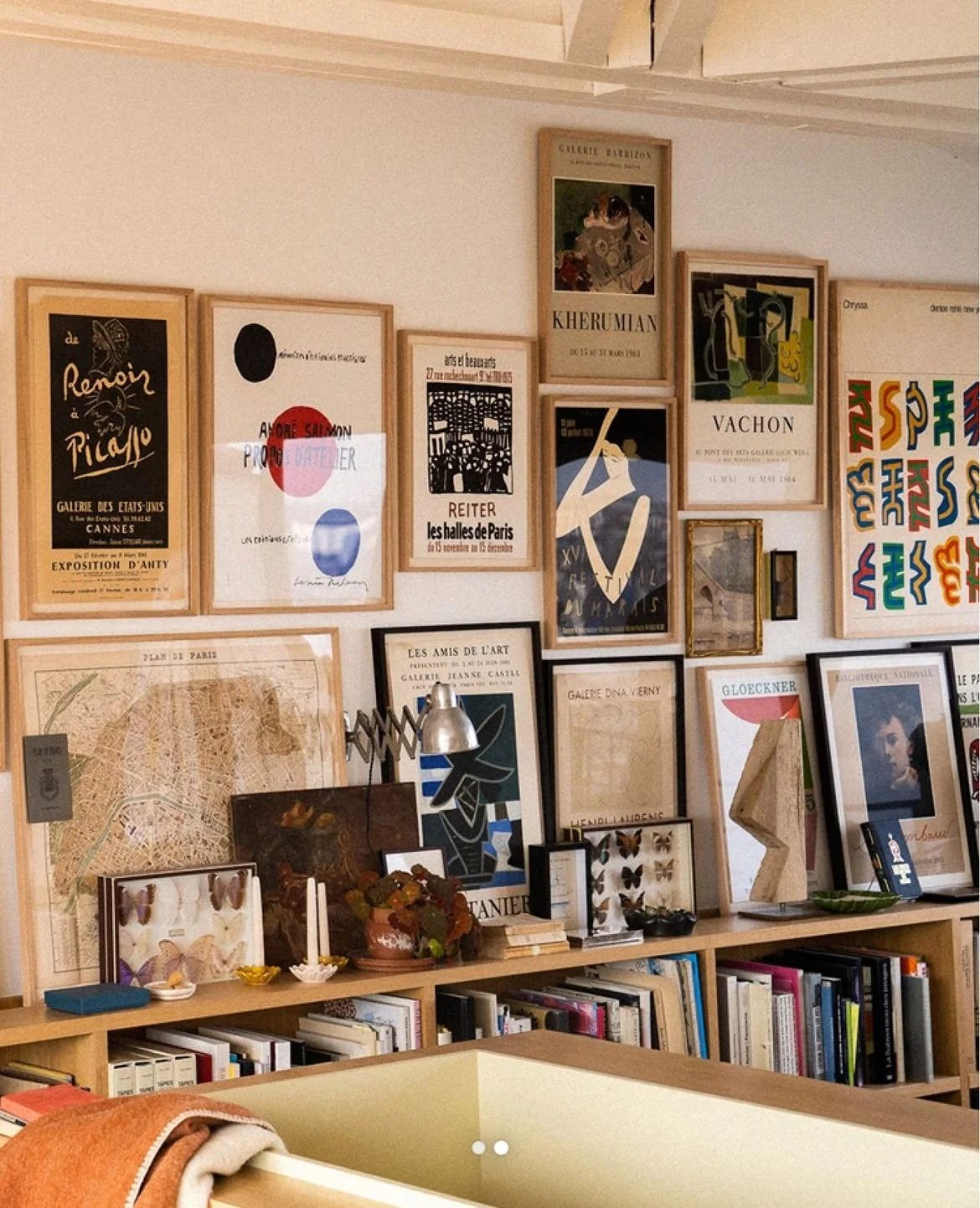
You find a piece of digital artwork you love and can already picture it hanging in your home. Printing it yourself seems simple enough. Then the colors look strange, the details turn fuzzy, or the finished piece doesn't fit the frame you already bought. Suddenly, your affordable decorating project has become more complicated than you expected. Fortunately, most common problems when printing your own wall art have straightforward explanations, and you can often fix them with a few simple adjustments.
Your Print Looks Blurry
We've all zoomed in on a photo on our phones and thought it looked perfectly sharp, but that doesn't mean it'll look just as sharp when you print it at a larger size. When you print a small digital image at a much larger size, you stretch its pixels across more space.
Check the image's pixel dimensions rather than assuming a larger file will produce a sharper print. For artwork that you'll examine closely, 300 pixels per inch provides a useful starting point, although some designs can look acceptable at lower resolutions.
If you want an 8-by-10-inch print at 300 pixels per inch, aim for an image measuring 2400 by 3000 pixels. Simply enlarging a smaller image won't create the missing detail needed for a sharp print.
Colors Don't Match Your Screen
That gorgeous shade of muted green looks perfect on your laptop but appears dull once you print it. It's frustrating, especially when you've already imagined it complementing your living room.
Your screen creates color with light, while your printer reproduces color through ink on paper. Because screens and printers reproduce color differently, the finished print might not match what you see on-screen.
Account for Screen Brightness
We often keep our screens brighter than necessary, particularly when working near windows. That brightness can make digital artwork appear more vibrant than the final print.
Try lowering your screen brightness and viewing your print under the same lighting conditions each time you make adjustments. If your printing software supports color management, select a color profile that matches your printer and paper combination.
The lighting in your home can also change the way you perceive the finished artwork. A print that looks balanced in daylight may appear warmer under your evening lamps.
Ink Bleeds Into Fine Details
Say you've chosen a minimalist illustration with delicate outlines. The lines look sharp on-screen, but their edges appear fuzzy once you print the illustration.
Inkjet printers deposit tiny ink droplets onto paper, and some surfaces allow those droplets to spread more than others. When ink spreads beyond its intended area, narrow lines can lose definition.
Paper selection becomes especially important when your design includes delicate outlines. The differences between drafting and bond paper for line bleed help illustrate why ink spread deserves attention, since excessive spreading can make fine details appear thicker or less distinct.
Match Paper to Your Artwork
Think about the details you want to preserve when choosing paper for your artwork. For a simple line drawing, choose an inkjet-compatible option that helps keep fine outlines sharp. Photographic artwork may benefit from a coated photo paper that reproduces colors more vividly.
Don't assume that thicker choices automatically produce sharper results. Paper weight describes its mass per unit area, but it doesn't tell you whether the surface will control ink spread.
For the most reliable results, check which type of paper your printer manufacturer recommends. Some printers can't feed heavier styles reliably, and certain coated finishes may not work with your printer's ink.
Your Artwork Prints at the Wrong Size
It's frustrating to finish printing your artwork only to realize it doesn't fit the frame you bought. You might have chosen the right paper size without checking whether the image dimensions match your frame.
Printing software sometimes automatically enlarges or reduces an image to fit the page. If you don't check the print preview, you might not notice that the software has changed your artwork's dimensions.
Check your print preview for scaling options before sending the artwork to your printer. If you're working with specific frame dimensions, select the appropriate print size rather than automatically fitting the image to the page. Remember that some home printers leave margins around the edges, so you'll also want to account for any borders when planning your final dimensions.
Dark Areas Lose Their Detail
You print a dramatic photograph expecting rich shadows, but the darker areas come out almost completely black. The original image may still contain those details, but your printer settings might not reproduce them clearly.
Use your editing software's shadow adjustment to brighten darker areas slightly. Rather than increasing the brightness of the entire image, focus on revealing detail within its darkest sections.
Avoid pushing the adjustment too far. Excessive brightening can flatten the artwork's contrast and undermine the atmosphere that attracted you to it.
Print a small section containing the darkest details to see whether your adjustment improves their visibility.
Paper Changes the Finished Appearance
Even with the same printer settings, your artwork may look noticeably different on two compatible paper types. Paper coatings affect the appearance of printed colors, while surface finishes influence the amount of reflected light.
Glossy finishes can emphasize color contrast, but they also reflect nearby light sources. Matte finishes generally reduce distracting reflections, making them appealing for artwork displayed opposite windows.
Neither finish is universally better for wall art. Think about where you'll hang the piece and whether reflections might interfere with viewing it.
Troubleshoot Without Wasting Paper
When your print doesn't turn out as expected, you might be tempted to change several settings at once. However, changing multiple settings at once makes it difficult to identify which adjustment fixes the problem.
Instead, concentrate on the most noticeable defect and test one adjustment at a time. Use this quick checklist to guide your next attempt:
Blurry details: Check the original image resolution
Unexpected colors: Review color settings and screen brightness
Fuzzy outlines: Confirm paper compatibility and media settings
Incorrect dimensions: Inspect scaling and print margins
Blocked shadows: Make a small adjustment to dark areas
Give Your Artwork a Final Check
Once you've addressed the most common printing problems, take a moment to evaluate your wall art away from your computer. Take your finished piece into the room where you intend to display it. Hold the print where you plan to hang it and step back to see what it looks like from across the room. A tiny imperfection that seems distracting at your desk might disappear once you step back, while an unexpected reflection could become more noticeable.
You don't need a professionally decorated home to create a wall display that reflects your taste. The next time a print doesn't turn out quite right, use what you've noticed to make a better one. You'll have more confidence creating artwork that belongs in your space.